
Bank statements are essential financial documents, whether you’re applying for a loan, filing taxes, verifying income, or simply tracking expenses. Fortunately, with the Bank of India Mobile Banking App, you can easily download your last 3 months’ account statement right from your smartphone—no need to visit the branch or use internet banking.
In this guide, we’ll show you exactly how to download your Bank of India account statement for the past three months using the official mobile banking app. This process is secure, simple, and takes only a few minutes, even for first-time users.
How to Download Bank of India Last 3 Months Statement from Mobile Banking
The Bank of India (BOI) mobile app offers customers a seamless experience to manage their banking on the go. One of its most useful features is the ability to generate and download account statements for various time periods, including the last 30 days, 3 months, 6 months, and more.
In this tutorial, we’re focusing specifically on downloading the last 3 months’ statement in PDF format, which is commonly required for financial documentation. Let’s begin the step-by-step guide.
Step 1: Launch the BOI App and Tap on Your Profile Initial

-
Open the Bank of India Mobile Banking App.
-
After logging in, you’ll see your initials (e.g., “AY”) at the top-left corner.
-
Tap on it to proceed to the profile and account settings.
Step 2: Tap “My Personal & Account Details”
-
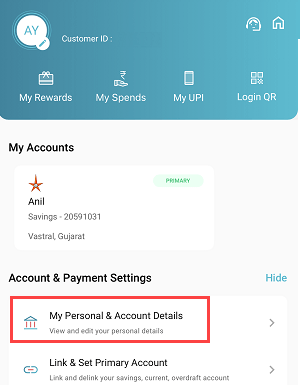
You’ll land on the dashboard after clicking your initials.
-
Scroll down and select “My Personal & Account Details” under the Account & Payment Settings section.
-
This gives you access to your account’s core information.
Step 3: Scroll Down and Select “Statements”

-
On the Account Details screen, scroll past your balance and branch info.
-
At the bottom, tap the “Statements” button to access the statement download feature.
Step 4: Choose Your Account and Tap “Last 3 Months”
-
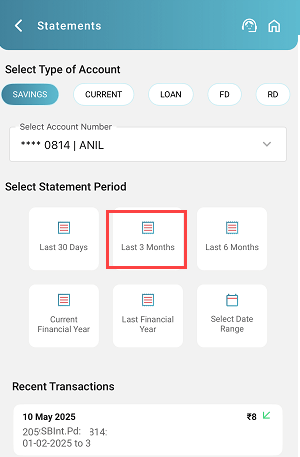
From the list, make sure the correct account is selected
-
In the statement period options, tap “Last 3 Months” to generate your transactions for that time frame.
Step 5: Tap on the “PDF” Option

-
After generating the transactions, scroll to the bottom.
-
You’ll see options to export as CSV, PDF, or Email.
-
Tap on PDF to generate a downloadable file format of your statement.
Step 6: Select “Download Statement Without Digi Sign”
-
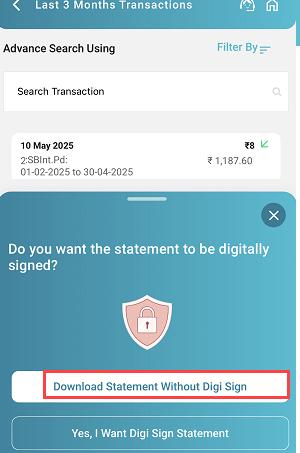
A prompt will ask whether you want a digitally signed version.
-
Tap “Download Statement Without Digi Sign” unless you need it for official verification purposes.
Step 7: Note the Password Instructions to Open the PDF
-
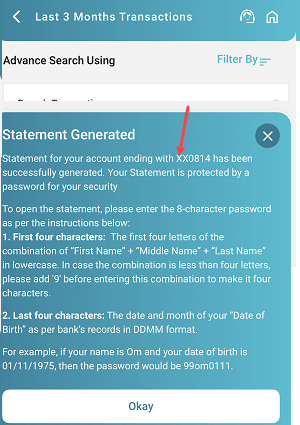
A screen will now show how to generate your password to open the PDF.
-
The format is:
First 4 letters of Full Name (lowercase) + Date and Month of Birth (DDMM)
Example:-
Name: Om →
9om(because it has fewer than 4 letters, a ‘9’ is added) -
DOB: 01-01 → Password:
9om0101
-
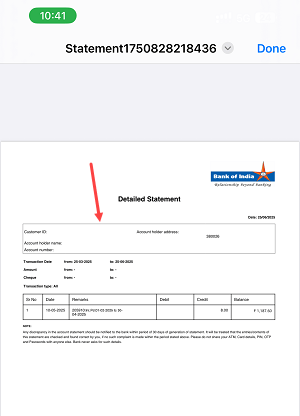
Step 8: Open and View the Statement PDF
-
Now go to your Downloads folder and open the PDF file.
-
Enter the 8-character password.
-
Your detailed 3-month BOI statement is ready, showing transactions, balance, date, and narration.
Final Thoughts
Downloading your Bank of India statement from the mobile app is quick, secure, and paperless. Whether you need it for financial planning or official purposes, the app provides an efficient way to get it done within minutes.
We hope this guide helped you understand the process clearly. If you need the statement for a custom date range or in a digitally signed format, the app also provides those options with just a few taps.