
Activating Central Bank of India Mobile Banking (Cent eeZ) is a simple process that allows you to manage your finances conveniently from your smartphone. This comprehensive guide walks you through the step-by-step process to activate Cent eeZ mobile banking, ensuring a seamless online banking experience. Follow the instructions below to complete your mobile banking registration and enjoy secure access to your account anytime, anywhere.
To activate the Cent eeZ mobile banking application, you will need the following: your bank-registered mobile number, an active internet connection, your debit card, and your account CIF number. You can find your CIF number in your passbook or by contacting customer care.
Activate Central Bank of India Mobile Banking Cent eeZ Using Debit Card
If you don’t have an ATM debit card, you cannot activate Cent eeZ online and will need to visit your branch for activation. If you do have a debit card, follow these steps to activate Cent eeZ in just 2 minutes.
Step 1: Install Cent eeZ Mobile Banking App & Start Registration
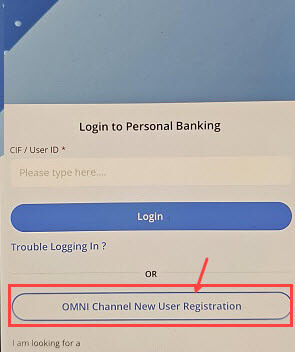
To begin, install and open the Cent eeZ app. Now tap on the “Omni Channel New User Registration” as you can see in the screenshot.
Step 2: Enter CIF Number & Mobile Number

- Enter your CIF number (e.g., 8442588874).
- Input your mobile number (e.g., +91 7878000000).
- Check the box to agree to the Terms and Conditions (T&C) for activating Net & Mobile banking.
- Click the Register button to proceed.
Step 3: Authentication via Debit Card

For user authentication, select the Debit Card option (alternatively, you can use a Branch Token):
- Enter your 16-digit debit card number.
- Input the expiry date (MM/YY format).
- Click Continue to verify your identity.
Step 3: Set New User ID

After registration, you’ll be prompted to set a User ID. This is a crucial part of your account setup:
- Type your preferred User ID in the provided field.
- Click Check Availability to ensure your chosen ID is unique.
- Once confirmed, click Continue to move forward.
Step 5: Set your MPIN

Next screen, you need to setup your login M-PIN. This is your 4-digit login password. Enter the desired 4-digit PIN and submit
Step 6: Secure Message Setup

Enhance your account safety by setting up a secure message:
- Choose to enter text, an image, or select from predefined options (e.g., globe, soccer ball, art, painting, house, tent, shirt).
- Input your message or select an icon.
- Click Continue to proceed, or Cancel if needed.
This feature adds an extra layer of security to your mobile banking profile.
Step 7: Set Security Questions
Strengthen your account protection by configuring security questions:
- Select from the dropdown list of security queries.
- Provide your personalized response for each question.
- Click Continue to save your settings.
These security questions serve as a backup recovery option, ensuring you can regain access if needed.
Step 7: Registration Success
Upon completing the previous steps, you’ll see a success message. This confirms your mobile banking signup is complete:
- The screen will display a welcome message and notify you that your enrollment is done.
- Click Continue or OK to proceed to your dashboard.
This step marks the successful activation of your Cent eeZ mobile banking account.
Benefits of Cent eeZ Mobile Banking
- Transfer money to any bank account using NEFT, IMPS, and RTGS
- Manage your Debit card usage, Set PIN, and turn the card on/off
- Order a new Cheque book
- Check your balance and statement.
By following this guide, you can effortlessly activate Central Bank of India Mobile Banking (Cent eeZ).