For any State Bank of India (SBI) customer using internet banking, the Profile Password is a critical layer of security. It acts as a second password required to authorise high-security transactions like adding a new beneficiary, changing your address, or modifying fund transfer limits. Forgetting this password can be a major inconvenience, effectively locking you out of these essential features. Similarly, forgetting the answer to your hint question can make recovery seem impossible.
Fortunately, SBI provides a secure and straightforward online method to regain access without the need to visit your branch. If you’ve forgotten your SBI Net Banking Profile Password or your hint security question answer, this guide is for you. We will walk you through the official step-by-step process to reset both your password and your hint question using your active debit card, ensuring you can restore full functionality to your account quickly and securely.
How to Reset Your SBI Net Banking Hint Security Question Answer Online
This online reset process is designed to be user-friendly and can be completed from the comfort of your home. Before you begin, please ensure you have the following things ready: your SBI Net Banking Username and Login Password, your registered mobile number to receive a One-Time Password (OTP), and your active SBI ATM/Debit card along with its PIN for verification.
The entire process involves logging into your account, navigating to the profile section, and using your debit card details to authenticate your identity. This allows you to set a brand new profile password and, at the same time, update your security hint question and answer, so you are fully prepared for the future.
Step 1: Log in to Your SBI Internet Banking Account
First, go to the official SBI online banking portal at onlinesbi.sbi. Click on “Personal Banking” and select “Continue to Login”. Enter your Username and your main Login Password to access your account dashboard.
Step 2: Navigate to the Profile Section
Once logged in, locate and click on the “My Accounts & Profile” tab from the top menu. From the dropdown options that appear, click on “Profile”.
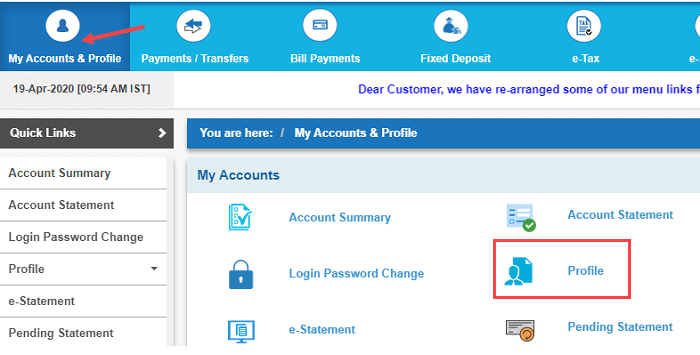
Step 3: Initiate the “Forgot Profile Password” Process
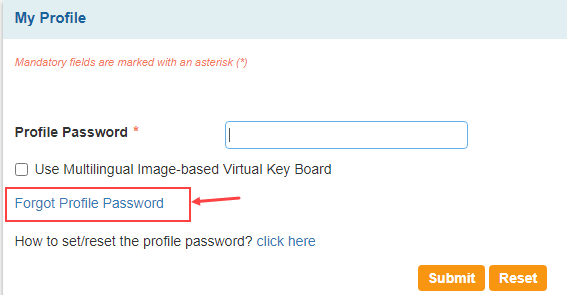
In the Profile section, you will see several options. Click on the “My Profile” link. The system will ask for your current profile password. Since you’ve forgotten it, click the “Forgot Profile Password” link located just below the input field.
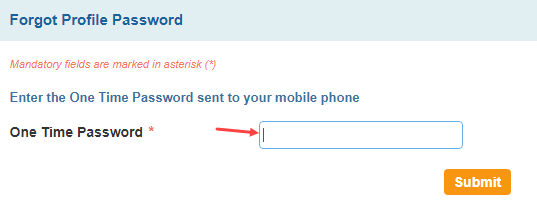
Step 4: Verify with a One-Time Password (OTP)
For security, a high-security OTP will be sent to your mobile number registered with the bank. Enter this OTP in the designated box and click “Submit”.
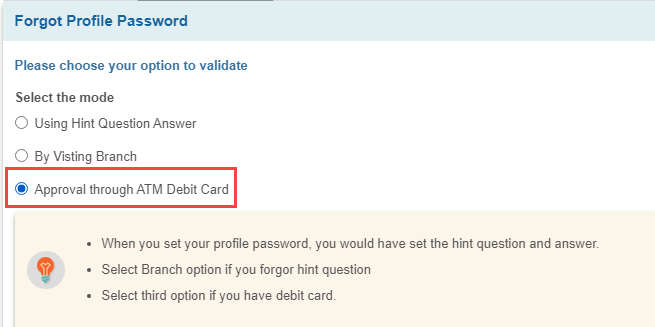
Step 5: Select the ATM Debit Card Reset Method
You will be presented with a few options to proceed with the reset. Select the most common and instant method: “Approve through ATM Debit Card” and click “Submit”.
Step 6: Validate Your Account and Debit Card
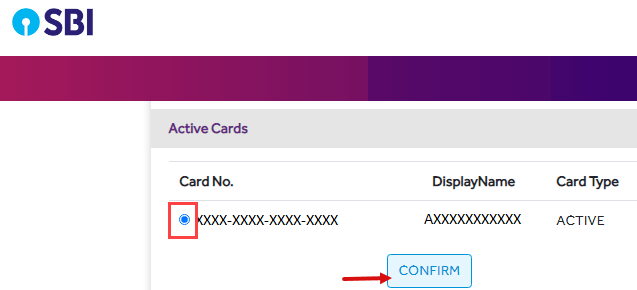
The system will display your bank account. Select it and click “Proceed”. On the next screen, you’ll see a list of debit cards linked to your account. Choose your active debit card from the list and click “Confirm”.
Step 7: Enter Debit Card Details for Authentication
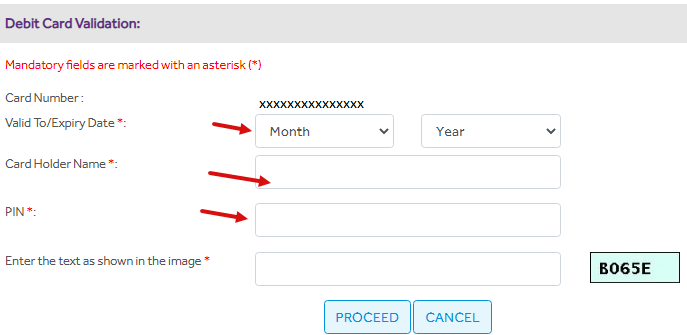
You’ll be directed to a secure validation page. Here, you must enter your Card Holder’s Name, the card’s Valid To/Expiry Date (MM/YYYY), and your 4-digit ATM PIN. Fill in the captcha text and click “Proceed”. After a moment, a “Success” message will confirm the validation is complete.
Step 8: Set Your New Profile Password and Hint Question
After successful card validation, you will be automatically redirected to the reset page. Here, you can set your new credentials:
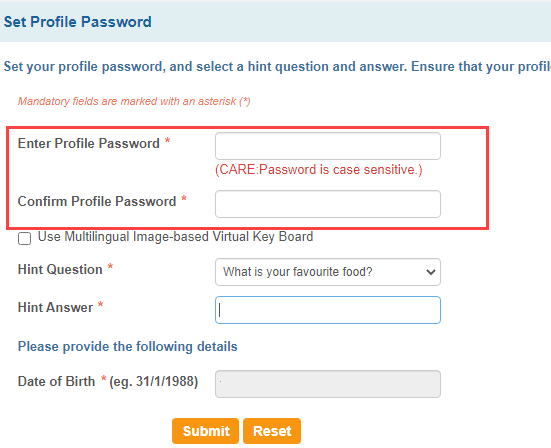
- Enter Profile Password: Type your new, strong profile password.
- Confirm Profile Password: Re-enter the same password to confirm.
- Hint Question: Select a new security question from the dropdown list.
- Hint Answer: Provide a memorable answer to your new question.
Once you have filled in all the fields, click “Submit”.
Step 9: Confirmation of Successful Reset
A final confirmation screen will appear with a message stating, “Your profile password/Hint security question answer has been reset successfully.” Your new password is now active, and you can immediately use it for authorising transactions and making profile changes.
Final Words
Forgetting your SBI Profile Password or Hint security question answer is no longer a cause for stress. By following this simple online process, you can securely reset your password and hint question in just a few minutes using your debit card. This empowers you to manage your account’s security independently without any delays. Always choose a strong, unique password and a hint answer that is easy for you to remember but difficult for others to guess.
FAQs
What is the difference between an SBI Login Password and a Profile Password?
The Login Password is used to access your SBI Net Banking dashboard and view your account details. The Profile Password is a second-level password required for performing high-security actions, such as adding beneficiaries, making profile changes, or setting transaction limits.
What do I need to reset my SBI Hint security question answer online?
To reset your profile password online, you will need your net banking username and login password, your registered mobile number for the OTP, and an active SBI ATM/Debit card with its corresponding PIN for authentication.
What if I don’t have an active SBI ATM/Debit Card?
If you do not have an active SBI debit card, or if you’ve forgotten your ATM PIN, you cannot use this online reset method. You will need to visit your SBI home branch with a written application and a valid photo ID (like an Aadhaar or PAN card) to get your profile password reset.
I forgot my Login Password as well as my Profile Password. What should I do?
You must reset them one at a time. First, use the “Forgot Username / Login Password” link on the SBI login page to reset your login password. Once you regain access to your account, you can follow the steps in this article to reset your profile password.
Can I choose to only reset my hint question without changing my profile password?
Yes. If you know your current profile password, you can log in, go to My Accounts & Profile > Profile, and find an option to “Change Hint Question & Answer”. You will need to enter your current profile password to make this change.