
Understanding NEFT Transfers through SBI Net Banking
NEFT (National Electronic Funds Transfer) is an electronic funds transfer system maintained by the Reserve Bank of India (RBI). It facilitates one-to-one funds transfer initiated by individuals, firms, or corporations from any bank branch to any other bank branch within the country. Unlike RTGS, NEFT transactions are processed in batches, meaning there might be a slight delay from the time of initiation to actual credit, though usually, funds are credited within an hour. The service is available 24×7, even on holidays, ensuring continuous accessibility for your financial needs.
SBI Net Banking provides a secure and user-friendly interface to manage your NEFT transactions. Before you begin, ensure you have your internet banking credentials (username and password) handy and that the beneficiary’s details, including their account number, account holder’s name, bank name, and IFSC code, are correct. Make sure you have added beneficiary bank account.
Step-by-Step Guide to NEFT Money Transfer via SBI Net Banking
1. Log In to SBI Internet Banking
- Access the SBI Net Banking Portal: Open your web browser and navigate to the official SBI Net Banking login page (onlinesbi.sbi).
- Enter Credentials: Input your “Username” and “Password” in the designated fields.
- Complete Captcha: Enter the characters displayed in the image/audio captcha for security verification.
- Login: Click on the “Login” button to access your SBI Net Banking account.
2. Navigate to Payments/Transfers
- Locate Payments/Transfers: Once logged in, on the left-hand side menu or the top navigation bar, find and click on the “Payments / Transfers” option. This section is dedicated to all fund transfer activities.

3. Select “Other Bank Transfer”
- Choose Transfer Type: Under the “Funds Transfer” section, you will see several options. Select “Other Bank Transfer” (or similar wording indicating transfer to a non-SBI account). This option is specifically for sending money to accounts in different banks.

4. Select “NEFT” Option and Proceed
- Select Payment Option: On the next screen, you will be prompted to choose the payment option. Select “NEFT” (National Electronic Funds Transfer) from the available choices (e.g., RTGS, IMPS).
- Proceed: Click on the “Proceed” button to continue with the NEFT transaction.

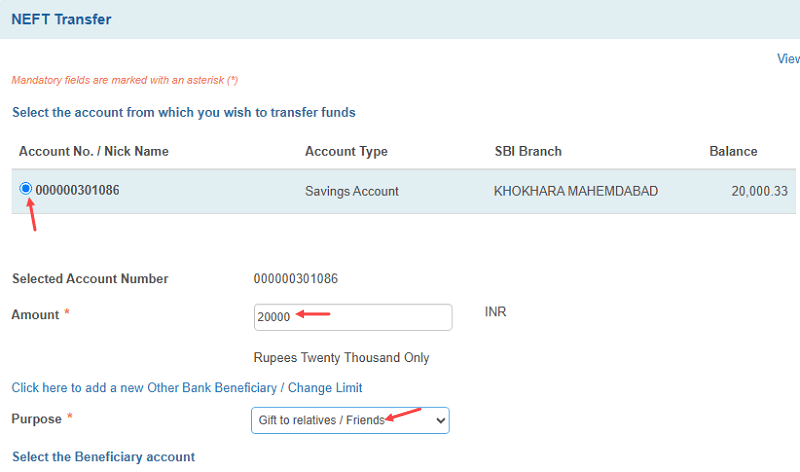
5. Enter Transaction Details
- Select Account: Choose the SBI account from which you wish to transfer funds if you have multiple accounts linked.
- Enter Amount: Input the desired amount you wish to transfer. Note the maximum limit for NEFT transfers, which is generally ₹25,00,000 (Twenty-Five Lakhs) per transaction, though this can be adjusted based on your beneficiary limits.
- Select Purpose: From the dropdown menu, select the appropriate “Purpose” for the transfer (e.g., Gift to relatives/friends, Loan Repayment, Business Payment).
6. Select Beneficiary and Submit
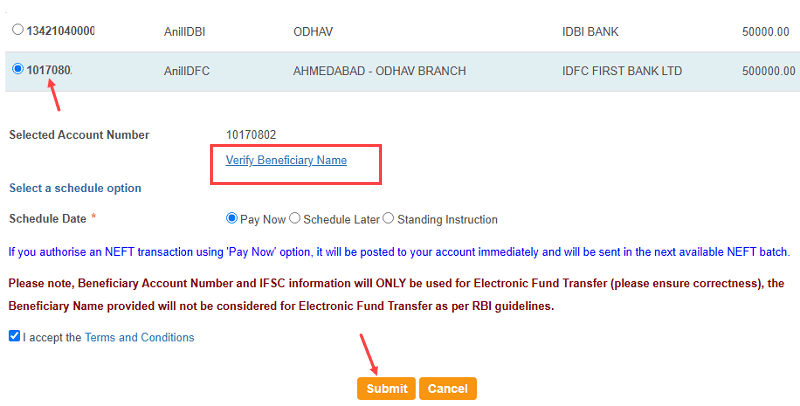
- Add/Select Beneficiary: If you have already added the beneficiary, select their account from the list. If not, you will need to add them first by providing their Account Number, Beneficiary Name, Bank Name, and IFSC Code. You can click on verify beneficiary name to verify receiver name before transfer.
- Accept Terms and Conditions: Read and accept the terms and conditions by checking the box.
- Submit: Click on the “Submit” button to initiate the transfer.
7. Confirm Transaction
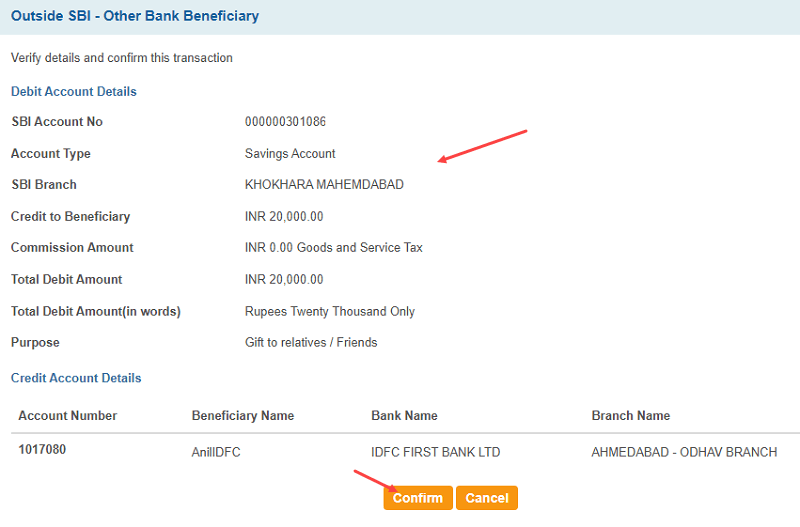
- Review Details: A confirmation page will appear, displaying all the transaction details. Carefully review the beneficiary’s account number, name, amount, and other information to ensure accuracy.
- Confirm: If all details are correct, click on the “Confirm” button.
8. Enter OTP for Authentication
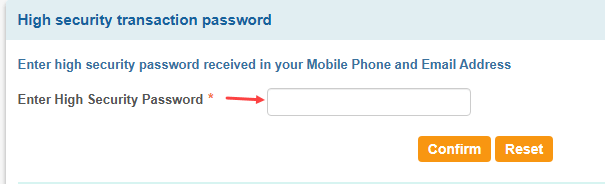
- Enter High Security Password (OTP): You will receive a One-Time Password (OTP) on your registered mobile number and/or email ID. Enter this OTP in the designated field.
- Submit: Click “Submit” to complete the transaction.
9. Transaction Confirmation and Receipt
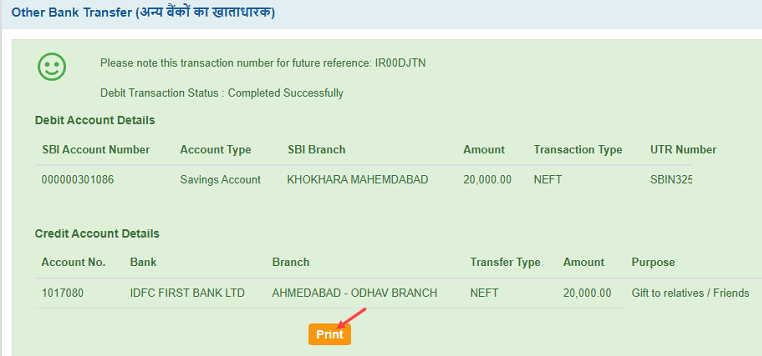
- Success Message: Upon successful completion, you will receive a confirmation message indicating that your NEFT money transfer is complete. The page will display the Transaction Status as “Successfully Completed” and provide a UTR (Unique Transaction Reference) Number.
- Print Receipt: You can click on the “Print” button to save or print your NEFT transfer receipt for your records. This receipt will contain all the transaction details, including the UTR.
- SMS Confirmation: You will also receive an SMS notification on your registered mobile number confirming the debit from your SBI account and the credit to the beneficiary’s account (once processed by the beneficiary’s bank).
Checking NEFT Transfer Status in SBI Net Banking
It’s natural to want to track your NEFT transfer. SBI Net Banking provides a convenient way to check the status of your initiated transfers.
1. Navigate to “Request & Enquiries”
- Access Requests & Enquiries: From your SBI Net Banking dashboard, click on the “Request & Enquiries” option, usually found in the top navigation or left menu.
2. Select “Status Enquiry”
- Choose Status Enquiry: Under the “Request & Enquiries” section, locate and click on “Status Enquiry.” This will lead you to a page where you can check the status of various transactions.
3. Select Date and View
- Specify Date Range: Select the “Start Date” and “End Date” for the period during which you initiated the NEFT transfer you wish to track.
- View: Click on the “View” button to retrieve the transactions within the selected date range.
4. Check NEFT Transfer Status
- View Details: You will see a list of your transactions. Look for the NEFT transfer you are interested in.
- Click to Check Status: Click on the transaction details (often represented by a link or button) to view the complete status. This will show you whether the transfer is “Processed,” “Under Process,” or “Credited to Beneficiary Account.” The UTR number will also be visible here.
By following these simple steps, you can confidently perform NEFT money transfers and track their status using SBI Net Banking. We hope this step-by-step guide on transferring money via NEFT from your SBI account to another bank will be helpful to you.